🚀 Template Deployment Hunyuan Video 1.x and Tutorial
- This tutorial reflects my own workflow and experience on RunPod.io.
- Always consult the excellent official RunPod.io documentation.
📦 Template Deployment
⚠️ Important Notice
- All images were tested on RunPod.io using an L40S GPU.
- Avoid regions US-TX-3 and US-TX-4 — they often fail to download or run the image (PyTorch CUDA errors).
- Don't use pods with no region id ther are unreliable.
🚀 RunPod.io Templates
One-Click Deployment links:
💻 Hardware Requirements
🎞️ T2V / I2V
GPU
- Precision: fp16
- Video settings: 1024×768, 100 frames
| GPU | VRAM | RAM (Native |
|---|---|---|
| L40S, RTX 6000 Ada, L40, A40 | 45 GB | 50 GB |
💾 Storage Requirements
| Component | Minimum |
|---|---|
| Volume Storage | 50 GB |
| Pod Storage | 15 GB |
📘 Tutorial
🚀 Starting a Pod for WAN Inference
🧩 Choose a Template

Example: - 👉 RunPod Hunyuanvideo 1.5 T2V
Steps:
- Choose a GPU (L40S or A40 recommended).
- Edit template settings if needed.
- Enable volume encryption if desired.
- Click Deploy On-Demand.
📜 Viewing System Logs

- Go to Logs.
- Loading takes 9–15 minutes depending on region/GPU.
- If the image doesn’t begin downloading in 1 minute, delete and redeploy in another region.
Ends with:
Digest: sha256:2b56bdd14df7af0dae7f9bd7978be9e61d791359f5ea65eedd65dcd2e16752fc
Status: Image is up to date for ls250824/run-comfyui-hunyuanvideo:22112025
🐳 Viewing Container Logs
ℹ️ Pod run-comfyui-hunyuanvideo started
ℹ️ Wait until the message 🎉 Provisioning done, ready to create AI content 🎉
When you see:
🎉 Provisioning done, ready to create AI content 🎉
→ Your pod is ready.
🔌 Connecting to Your Pod

🎨 ComfyUI
- Select tab Connect → ComfyUI
- Set username/password
- Load a workflow
- Press Run
- Monitor GPU/RAM via Telemetry

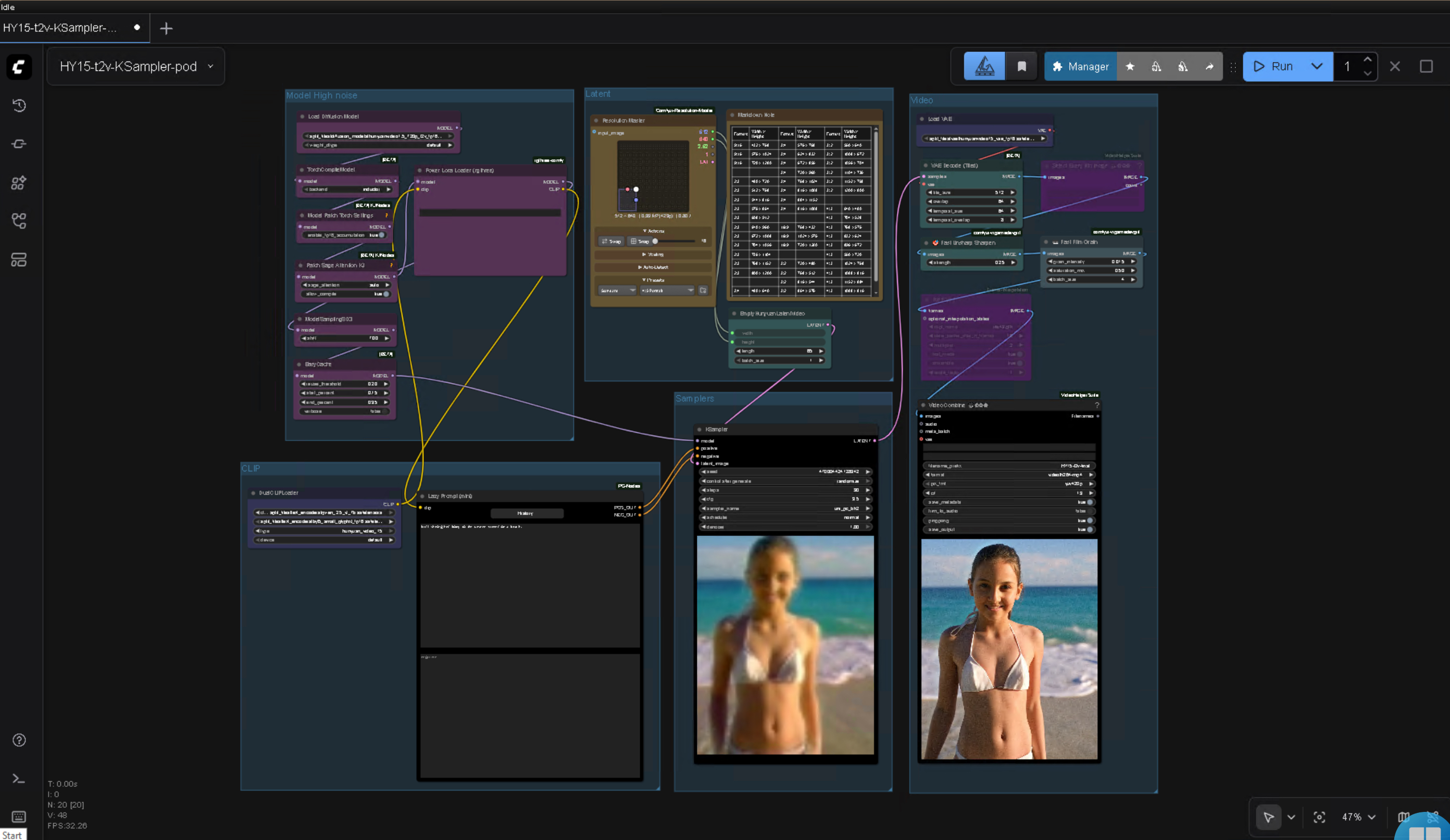
💻 Web terminal

- Select tab Connect
- Enable web terminal
- Provides terminal access directly in your browser.
🔐 Secrets
Useful secrets:
PASSWORDCIVITAI_TOKENHF_TOKEN
🧑💻 Code-Server Login
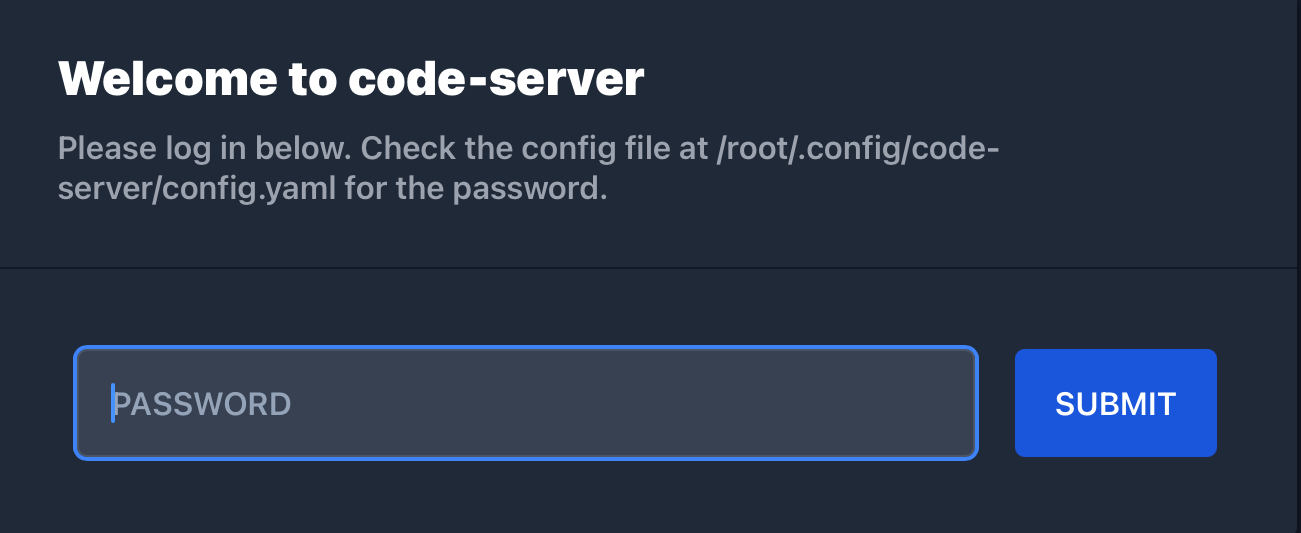
If no "PASSWORD" was set open the web terminal and enter.
cat /root/.config/code-server/config.yaml
Copy the password → log in via the Code-Server service on tab Connect.
📥 Downloading Models and LoRAs
From web terminal or Code-Server.
🧩 CivitAI
If no "CIVITAI_TOKEN" was set, create or use a free token from the civitai website.
export CIVITAI_TOKEN="xxxxx"
Download example from CivitAI
civitai "https://civitai.com/api/download/models/2377549?type=Model&format=SafeTensor" /workspace/ComfyUI/models/loras/
civitai "https://civitai.com/api/download/models/2377566?type=Model&format=SafeTensor" /workspace/ComfyUI/models/loras/
Refresh ComfyUI using key r.
☁️ HuggingFace
"HF_TOKEN" is mandatory but needed for gated sites and upload.
Login:
hf auth login --token xxxxx
or set token:
export HF_TOKEN="xxxxx"
Download example from Huggingface.
hf download ricecake/wan21NSFWClipVisionH_v10 wan21NSFWClipVisionH_v10.safetensors --local-dir /workspace/ComfyUI/models/clip_vision
Refresh ComfyUI using key r.
🔄 Uploading & Downloading Files
☁️ Cloud Sync
Free dropbox
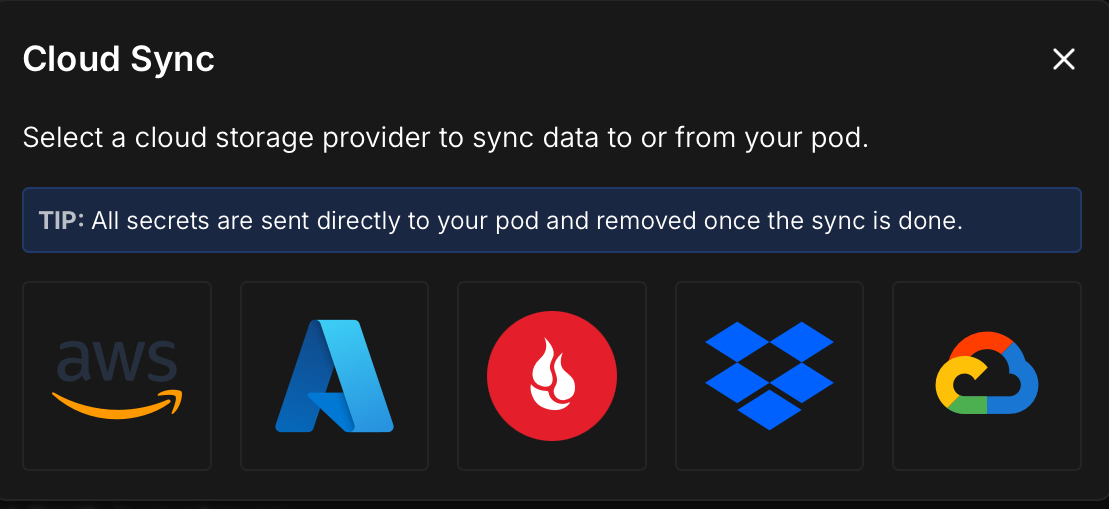
- Reliable and fast upload and download for large files.
- Go to Dropbox developers
- Create an app to connect with runpod.io.
📦 runpodctl
Speed
- Fine for downloading files from your pod.
- Problematic for uploading large files to your pod with slow connections (timeouts).
- Perfect for transfering files between pods.
Installation
- You need to install a client on your local computer.
- You do not need an api key to upload/download to/from your pod.
🔧 Advanced Features
🔐 SSH / SCP / SFTP
Docs.
Key generation
- Linux has ssh-keygen already installed to generate keys.
- Windows install Git to get ssh-keygen.
- Put your public key on runpod.io keep your private key on your local computer.
Apps.
- Use Shellfish, Putty, Tabby terminal or shell/bash.
- File transfer Shellfish or WinSCP.
🔑 RunPod API
Useful when the web console is out (examples are outages from AWS and Cloudflare).
Using runpod.io API
- Docs.
- Install with "sudo apt install curl" on Ubuntu.
curl --request GET \
  --url https://rest.runpod.io/v1/pods \
  --header 'Authorization: Bearer <api-key>'

curl --request POST \
  --url https://rest.runpod.io/v1/pods/{podId}/stop \
  --header 'Authorization: Bearer <api-key>'

curl --request DELETE \
  --url https://rest.runpod.io/v1/pods/{podId} \
  --header 'Authorization: Bearer <api-key>'
Using runpodctl to start/stop your pod with your api key.
- Docs.
- Install client on local computer.
- Use Shell/PowerShell or Bash.
runpodctl config --apiKey <YOUR_API_KEY>

runpodctl get pod --allfields

runpodctl stop pod <pod_id>

runpodctl remove pod <pod_id>